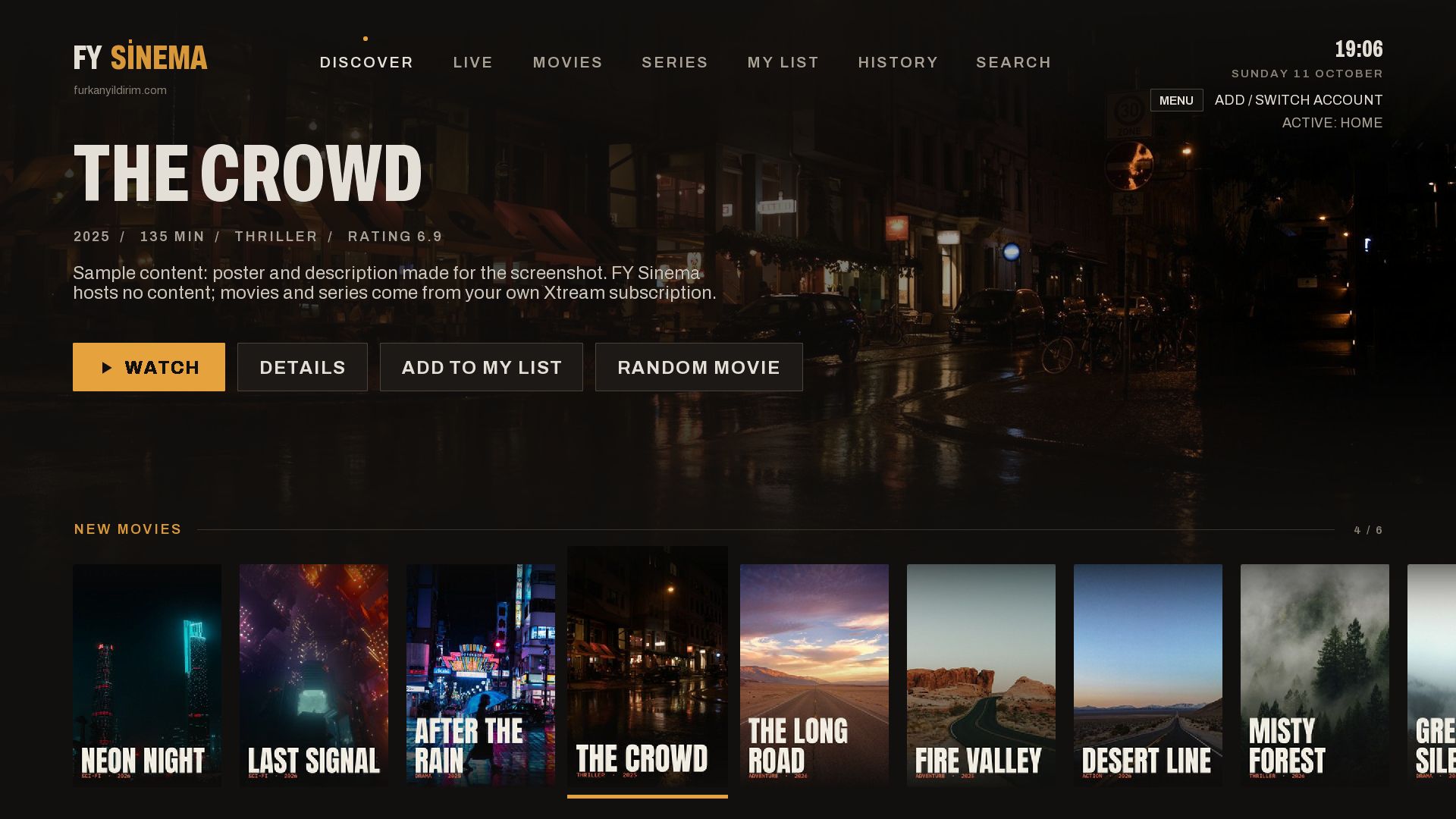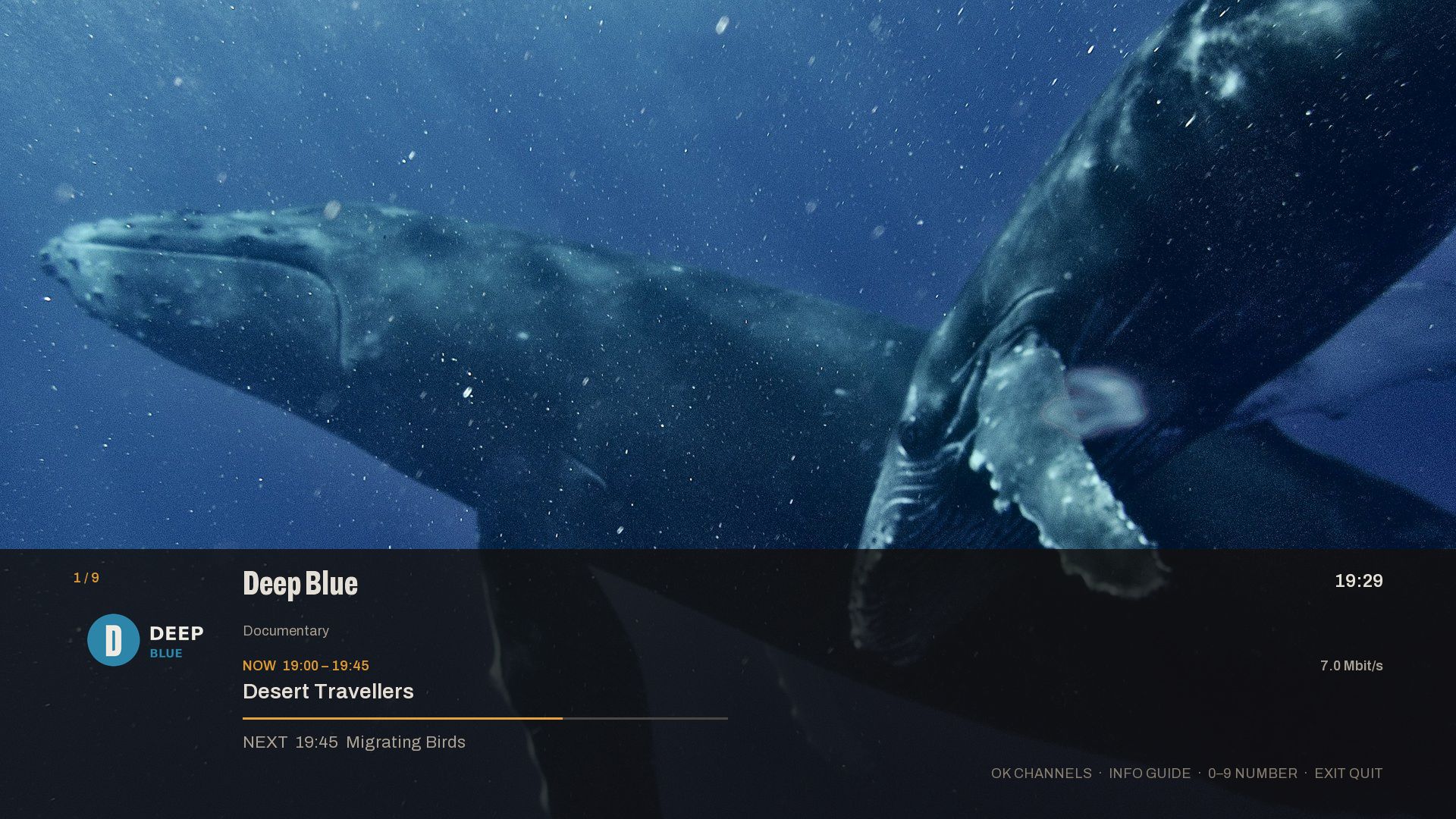
FY Sinema is a fast, clean live TV, movie and series player with posters for your Enigma2 receiver. Browse the channels and titles of your own Xtream subscription and watch them with one press of the remote.
InstallSee the screensThis is not a movie or series sharing service. FY Sinema is only a player; it contains no movies, series, channels or streams. It does not sell, host or distribute content and does not provide servers, accounts or links. Everything you see on screen comes from the Xtream account you add yourself. Choosing a provider and the legality of what you watch are the user's responsibility.
Channel and title names, logos and posters in the screenshots are made-up examples for the presentation; FY Sinema provides no content.
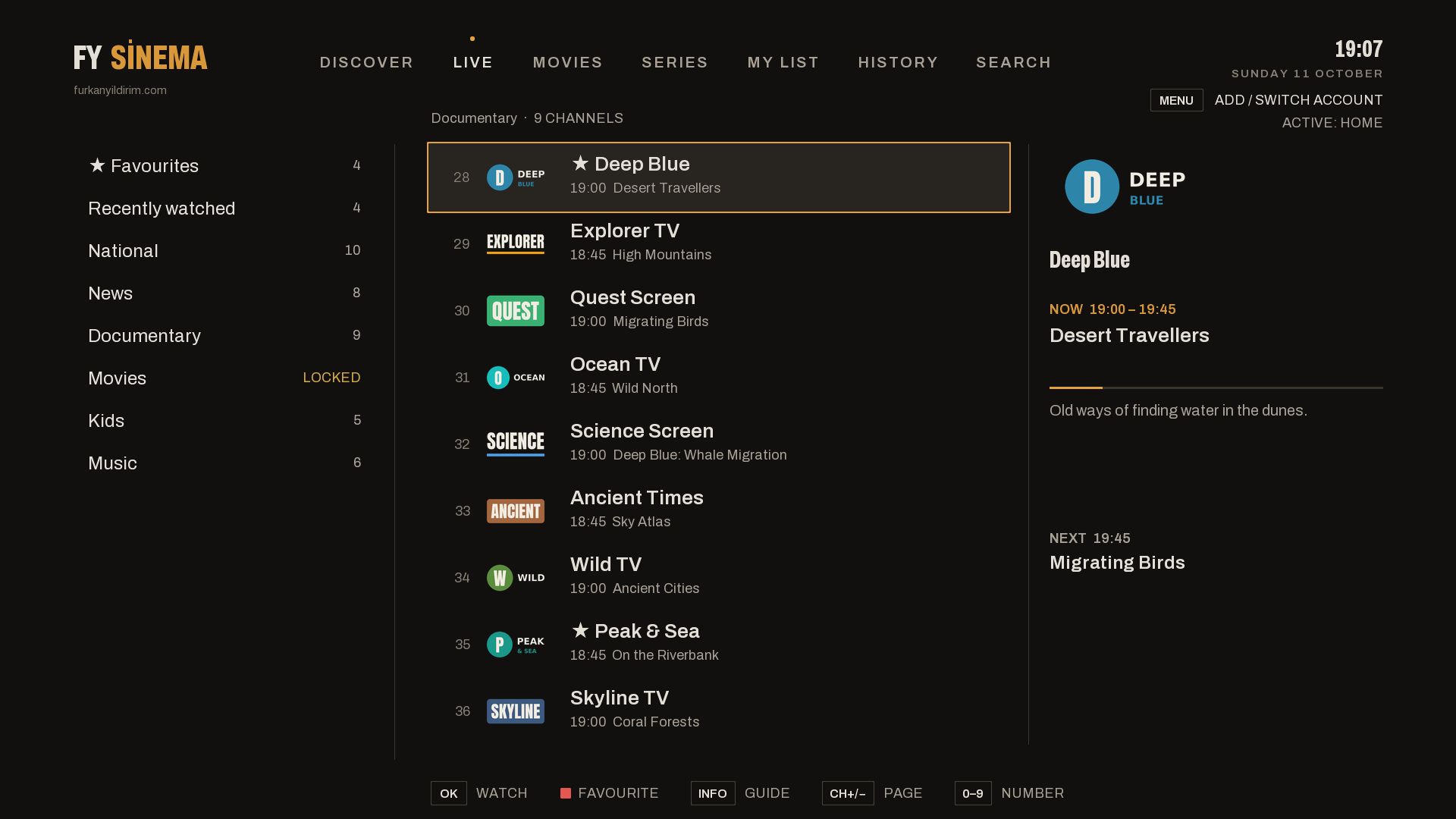
Categories on the left, with your favourites and recently watched at the top. Channels with their number and logo in the middle, and on the right what is on now and next on the focused channel. Add a channel to your favourites with RED, or type its number to open it directly. Scrolling stays smooth even with thousands of channels.
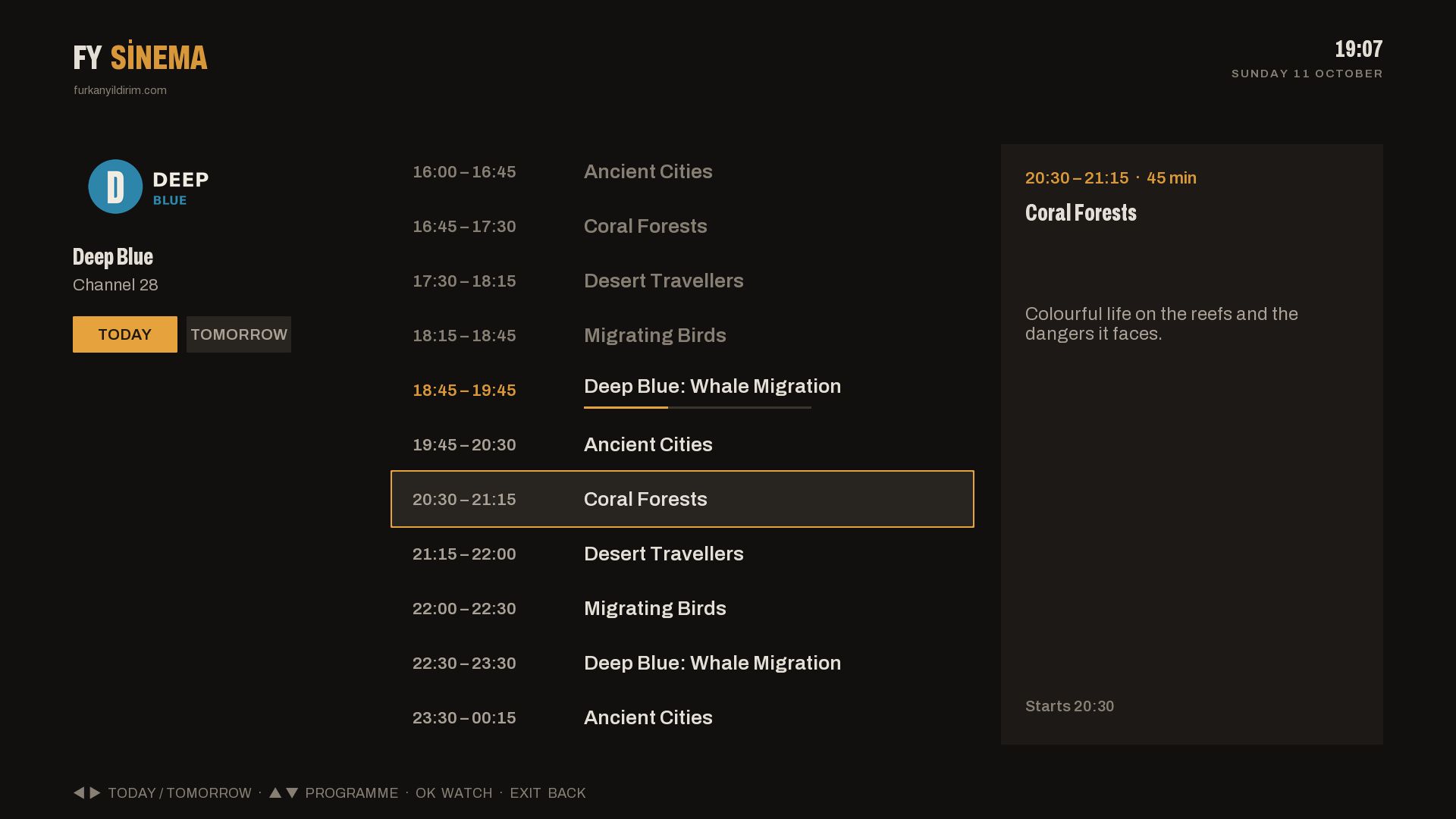
Press INFO in the channel list: today's and tomorrow's schedule of the focused channel opens, with times and descriptions. On the programme that is on now, OK opens the channel.
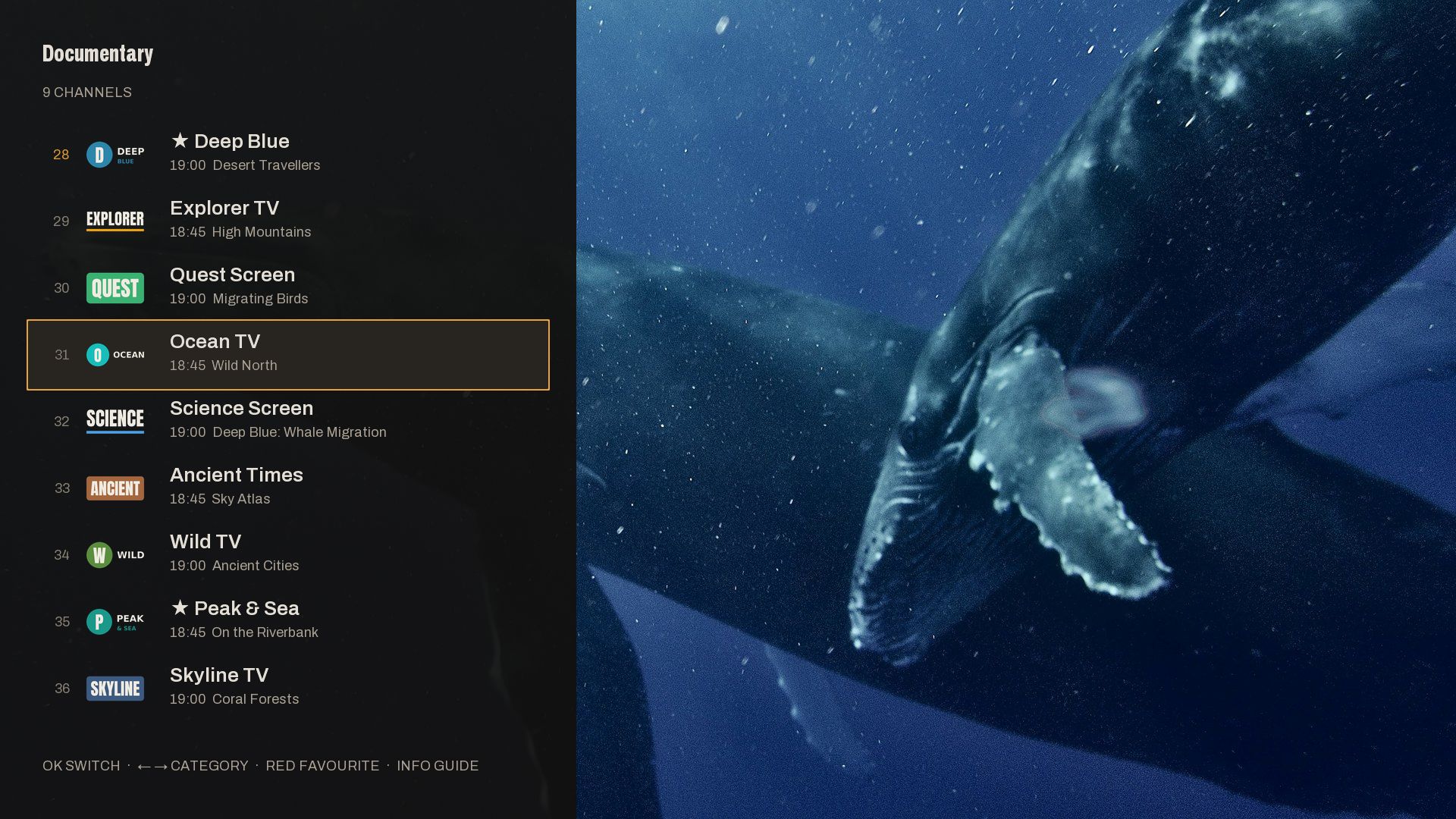
Press OK and the channel list opens; the picture keeps playing. OK in the list switches channel and the list stays open; OK again on the playing channel closes it. You can also switch by number, and 0 on its own goes back to the previous channel; if the stream drops, it reconnects by itself.
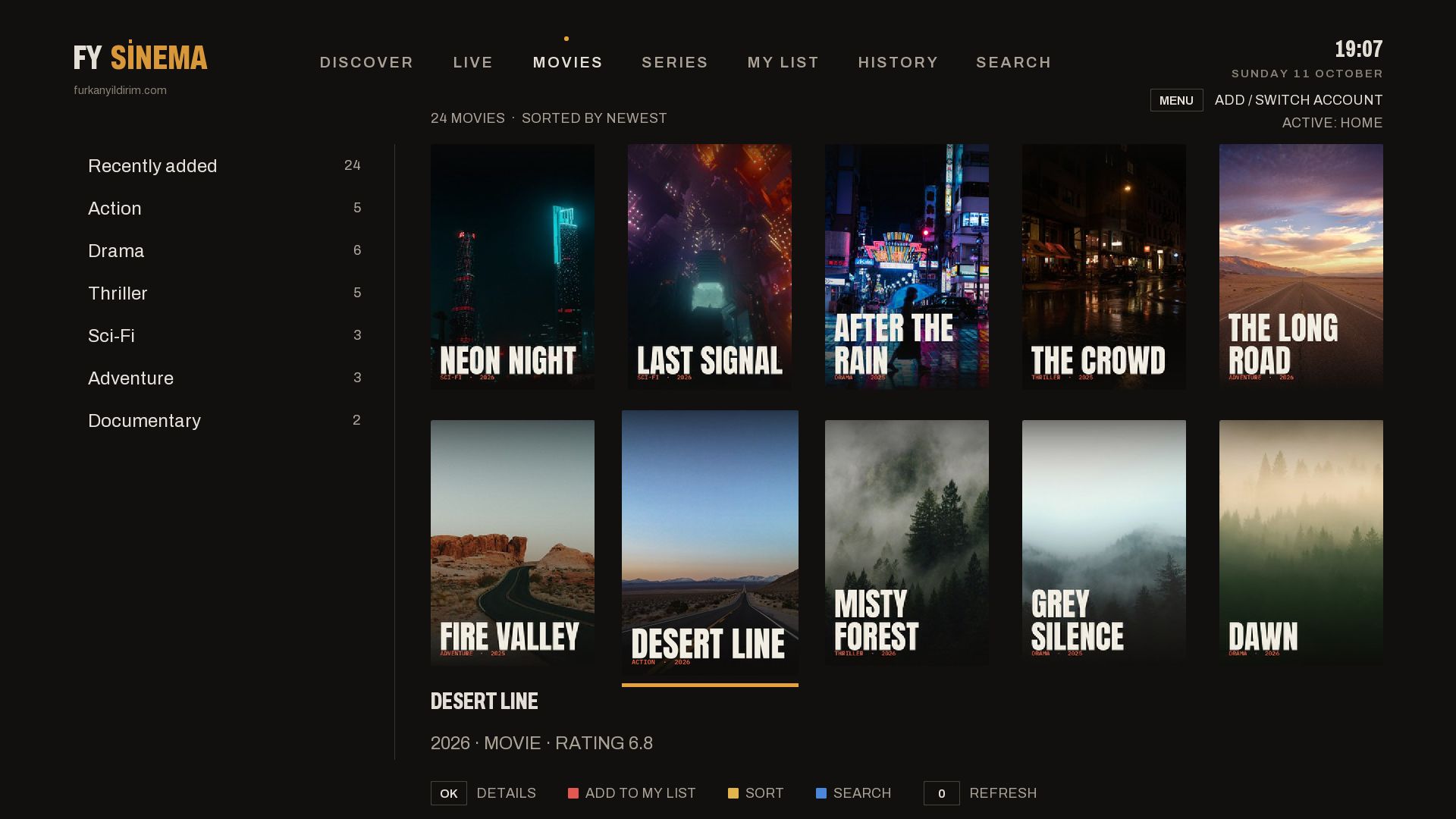
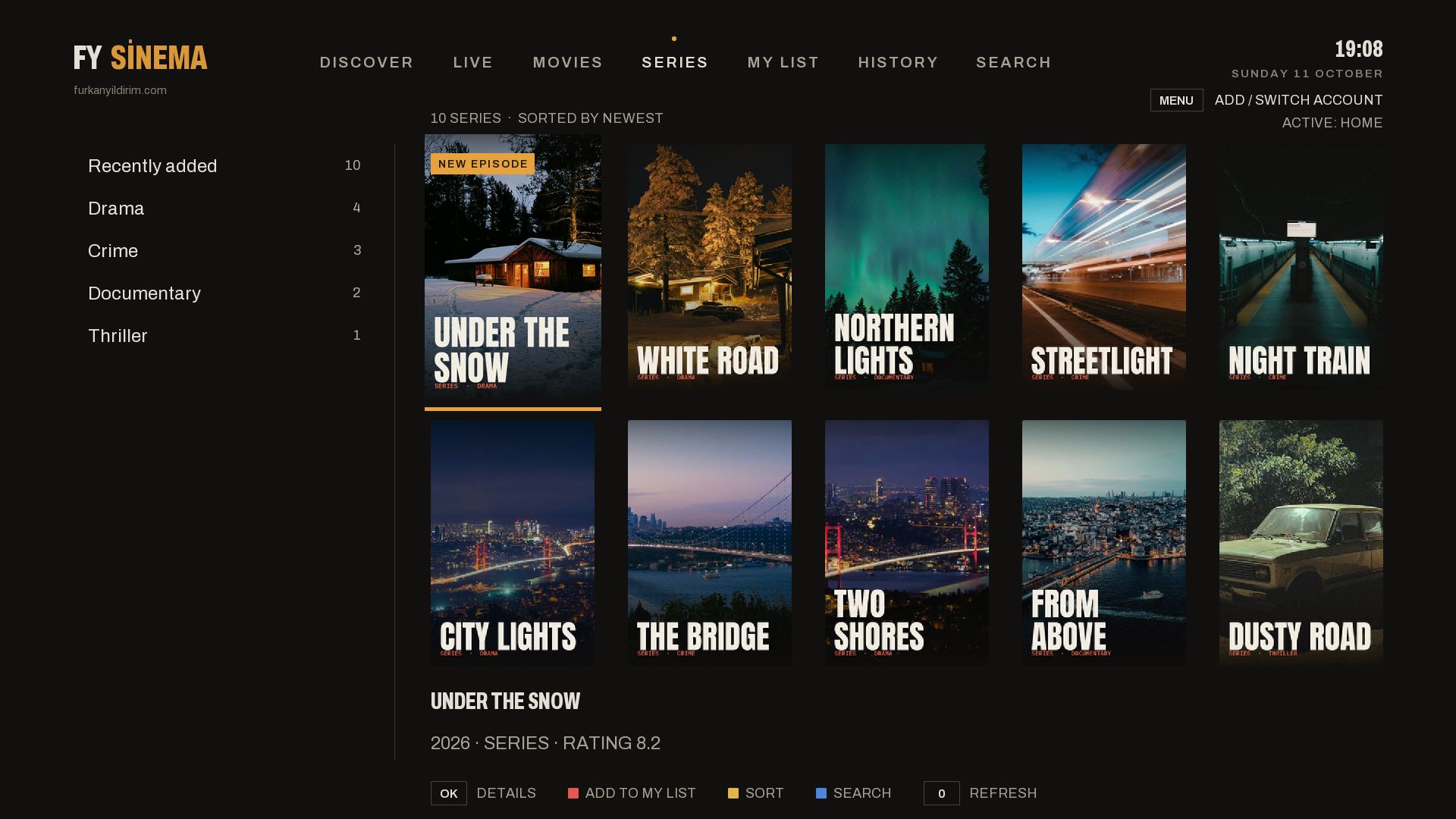
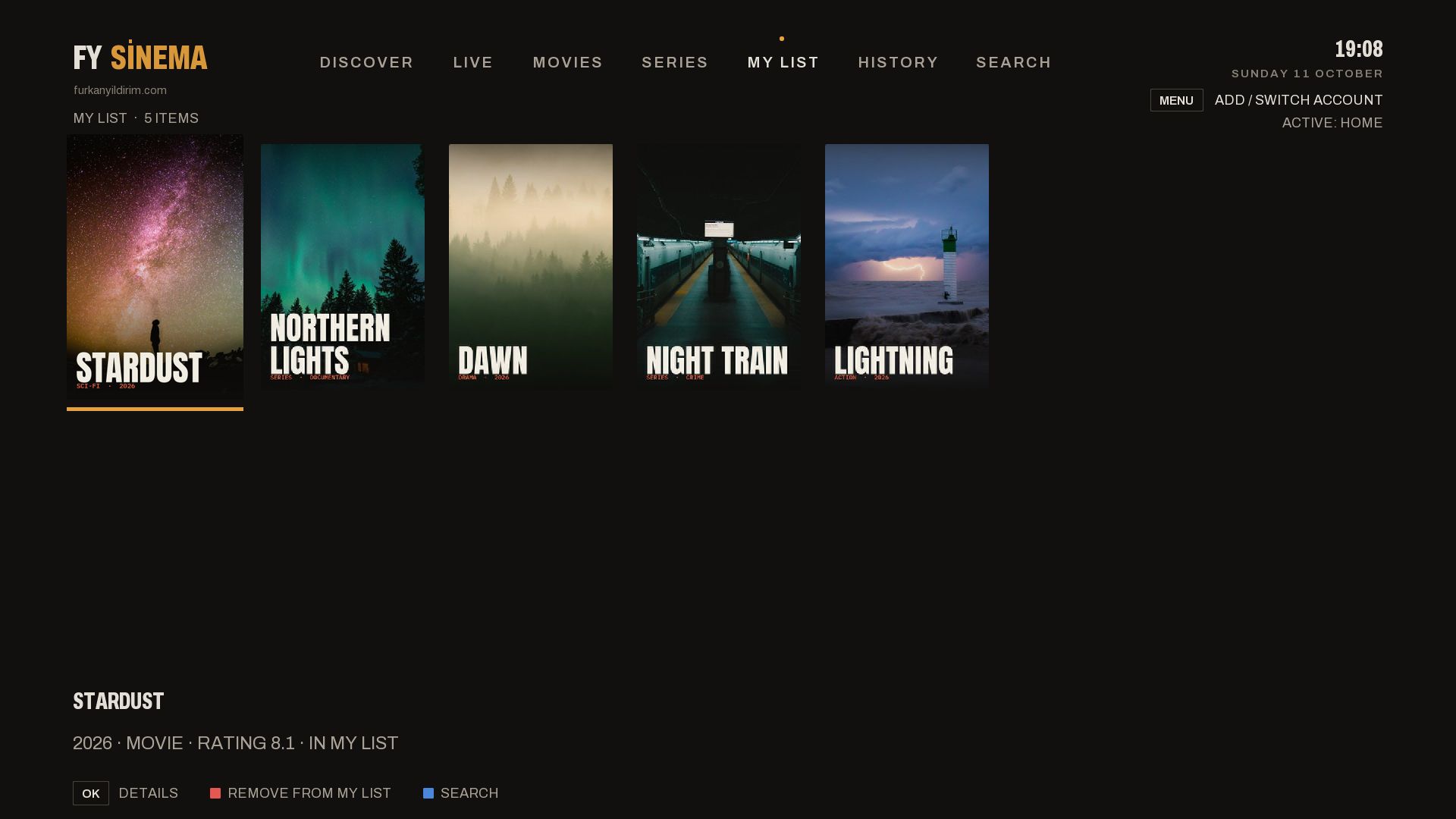
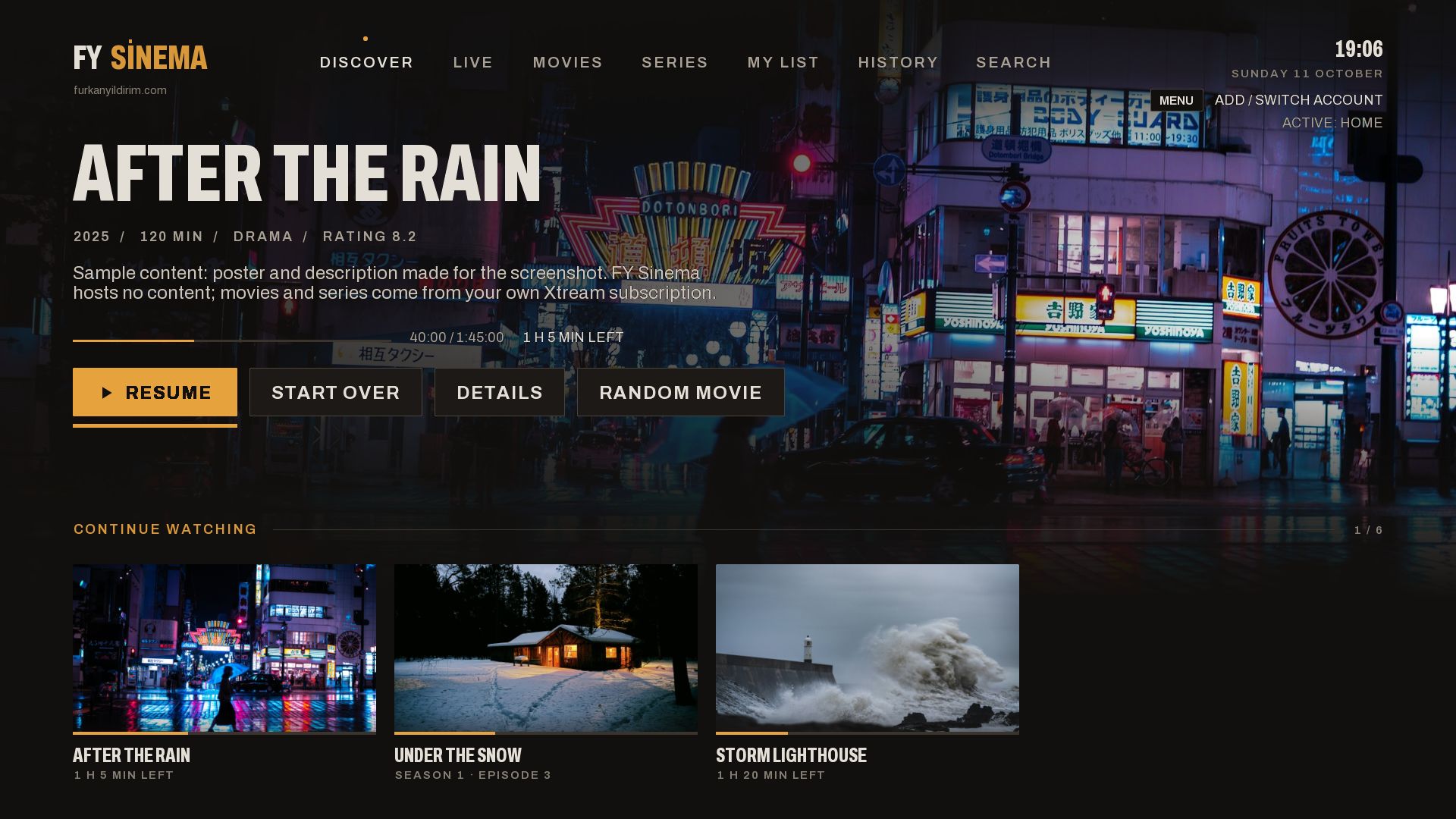
Thousands of titles sorted by genre and lined up with their posters; the focused poster grows. Sort by newest or by name and add what you like to your list with one press. Switching categories and scrolling stay smooth even with large catalogues.
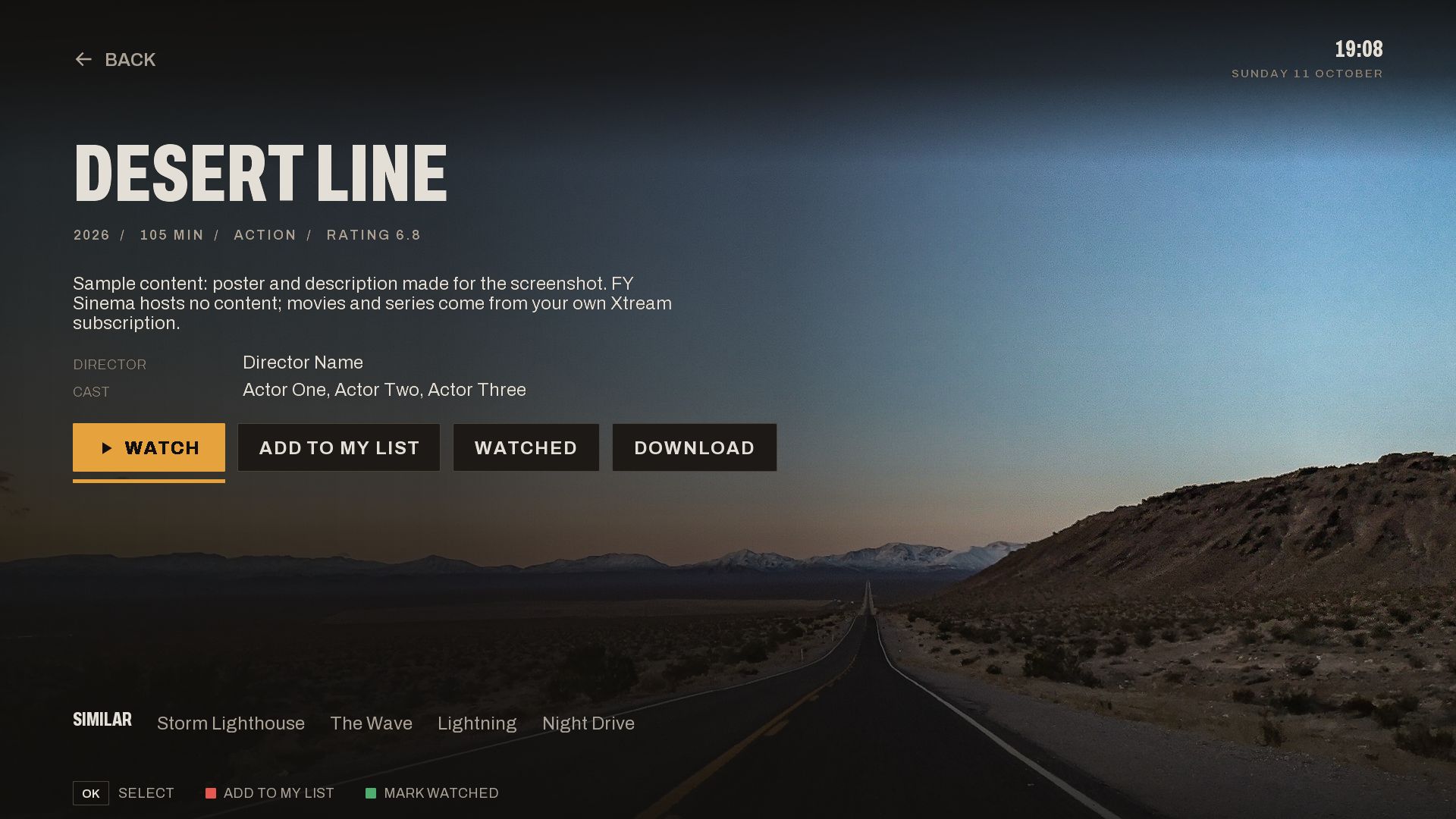
Runtime, genre, rating, plot and cast on one screen. Watch it, add it to your list, mark it as watched or download it; similar titles are right below.
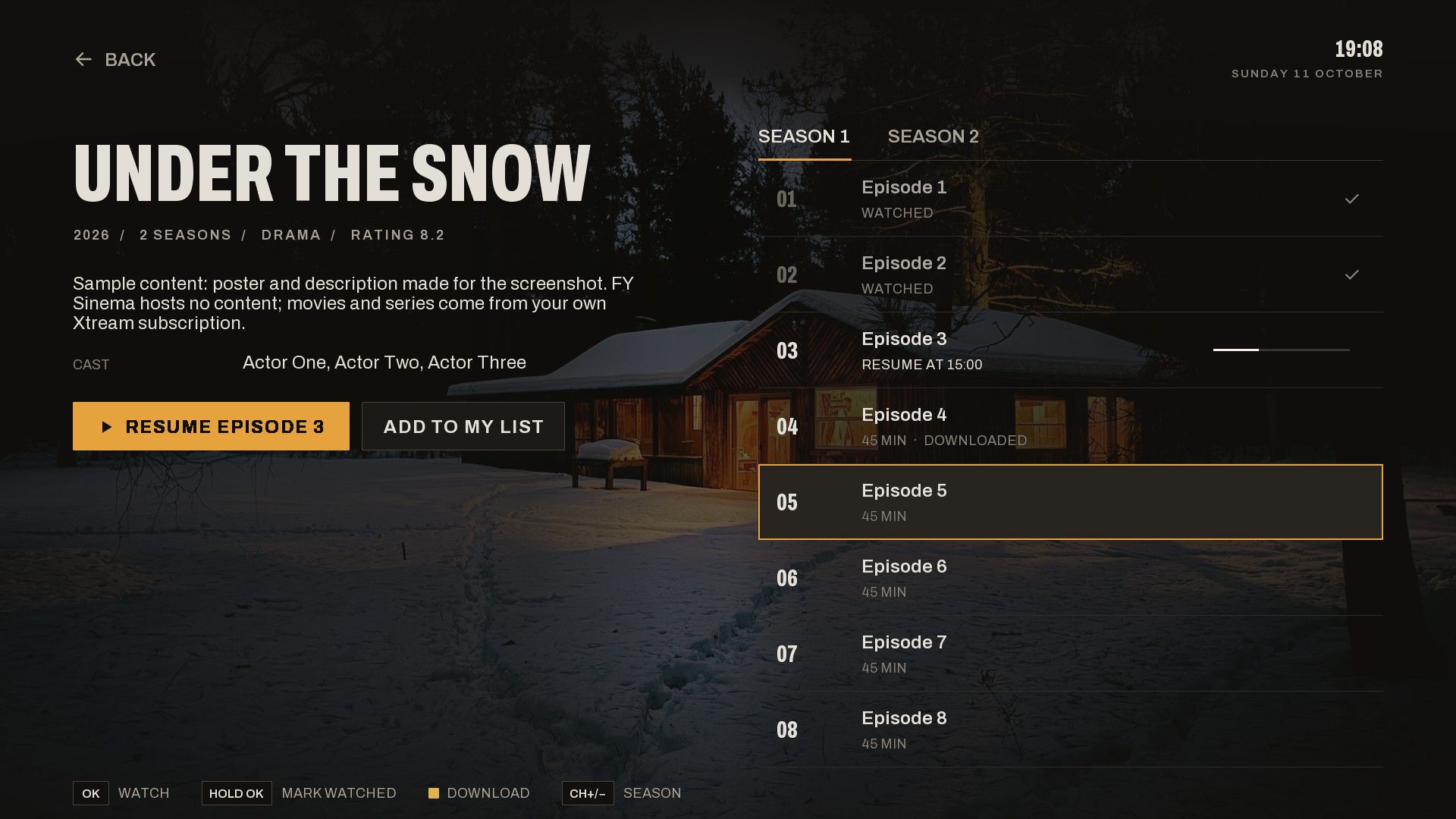
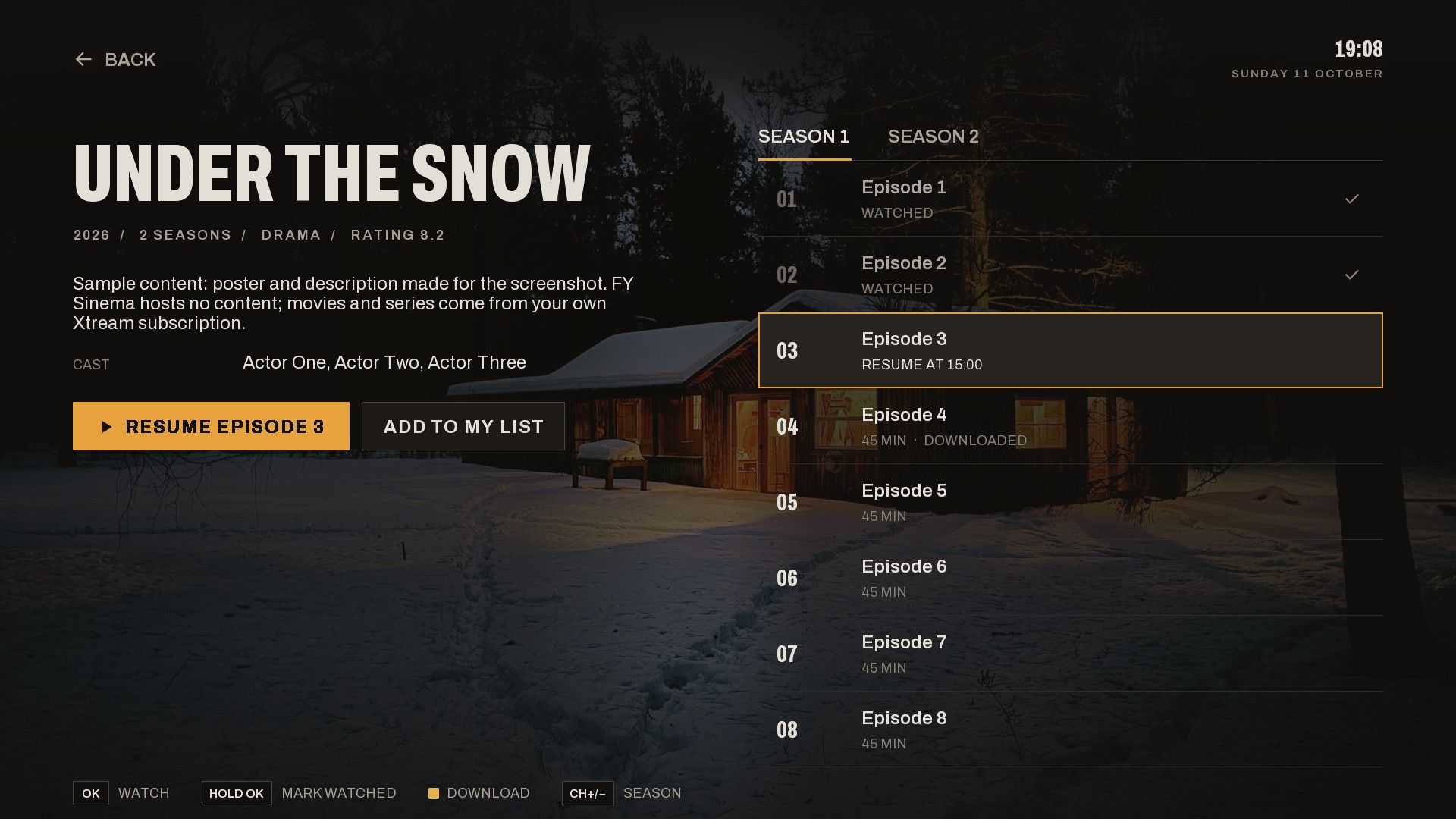
Watched episodes are ticked and where you left off is shown to the second. When a new episode arrives you see it on the series and in the NEW EPISODES row on Discover. Mark an episode or a whole season as watched with a long OK; when an episode ends, the next one starts by itself.
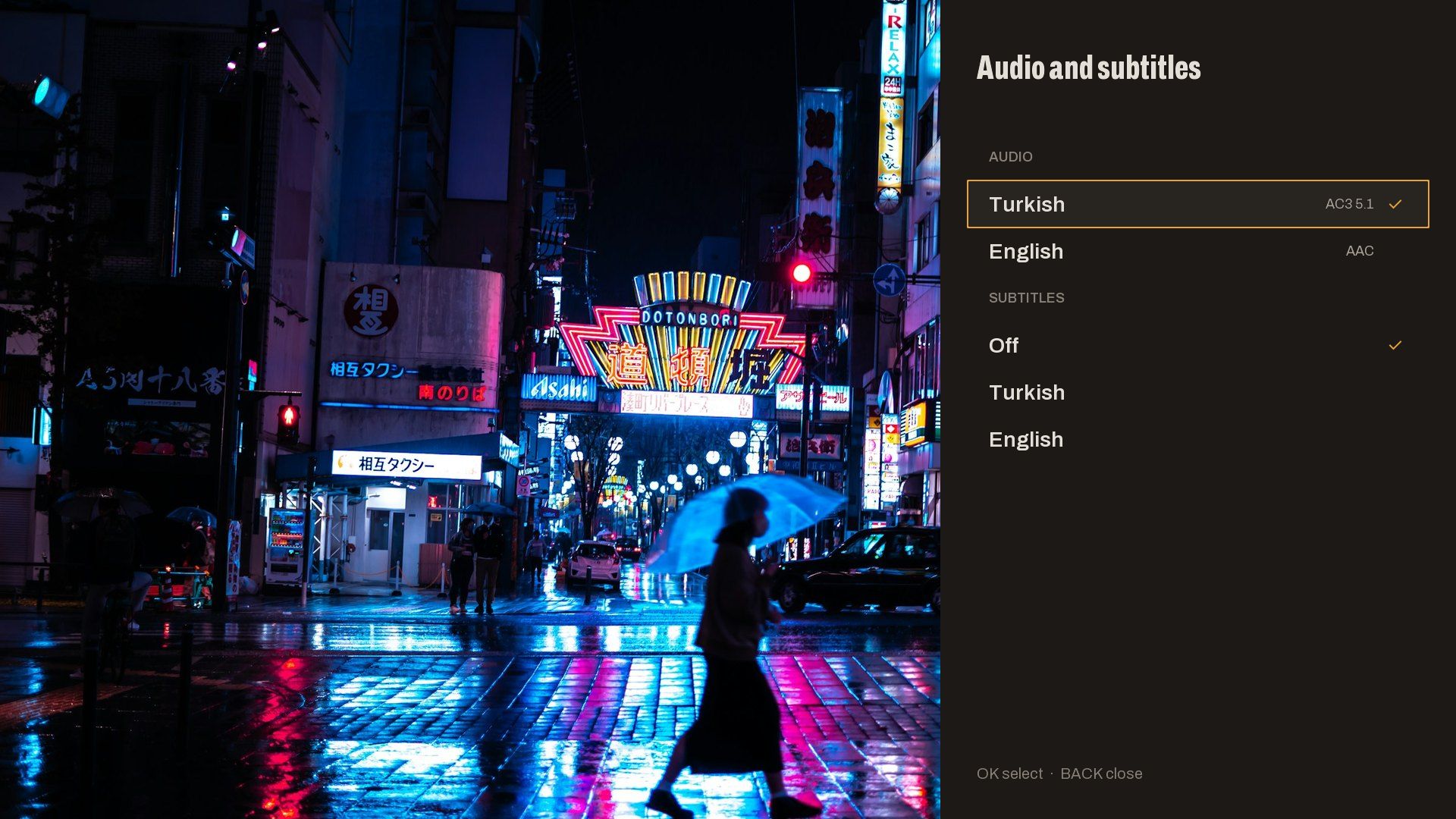
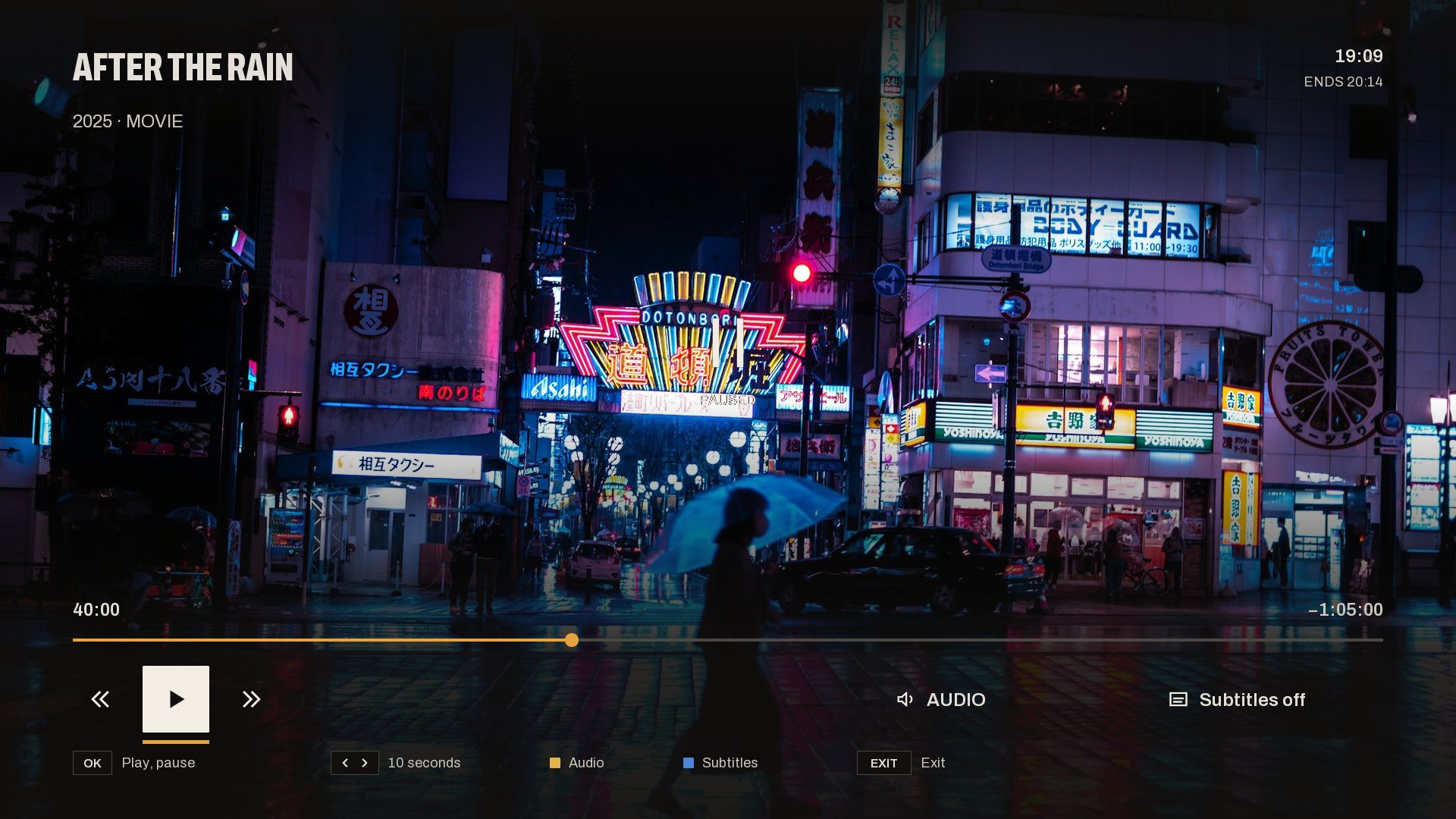
Press YELLOW or BLUE while watching and the audio language and subtitles appear in a panel on the right. The language you choose in Settings is picked when a movie starts; what you pick by hand is remembered for that movie, or for the whole series. Skip back and forth; when you exit, your position is saved.
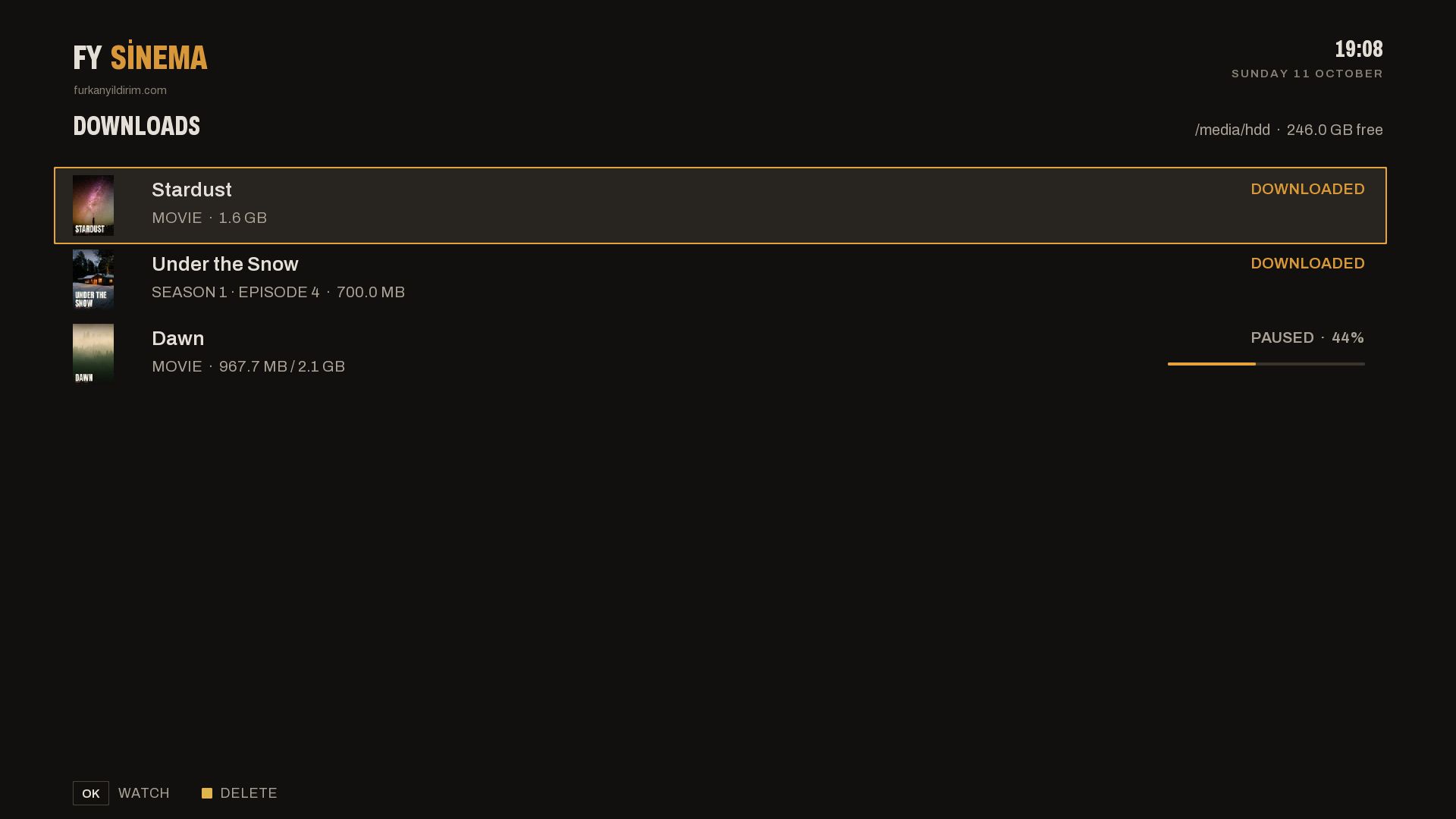
Download a movie or an episode to a USB stick or HDD plugged into your receiver, or queue a whole season. Downloads continue in the background and an interrupted one resumes where it stopped. Finished downloads appear in the DOWNLOADS row on Discover; you can watch them without internet too.
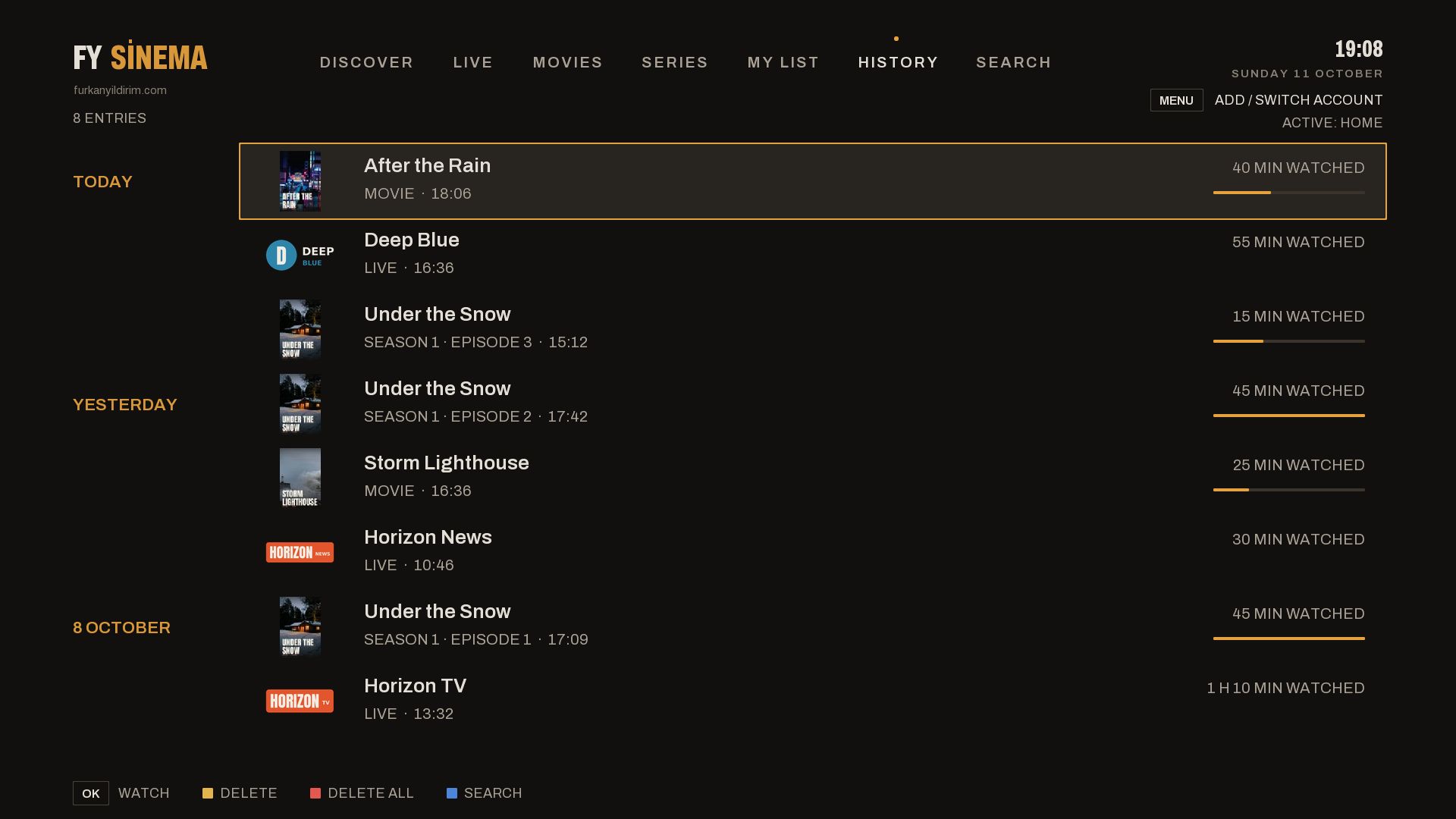
The HISTORY tab lists the movies, episodes and channels you watched for at least 2 minutes, by day (the last 100 per account). Delete entries one by one; you can turn it off in Settings.
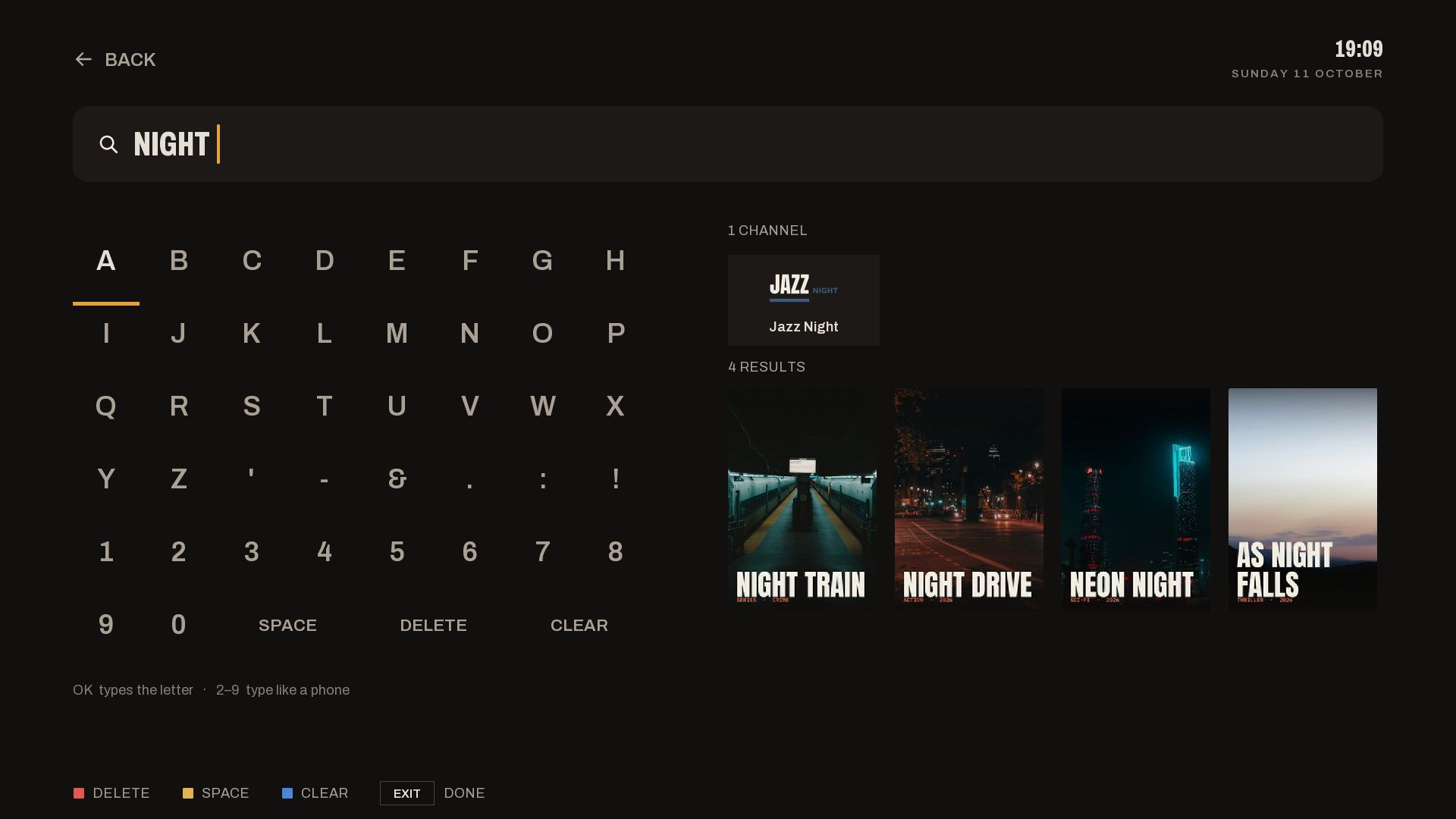
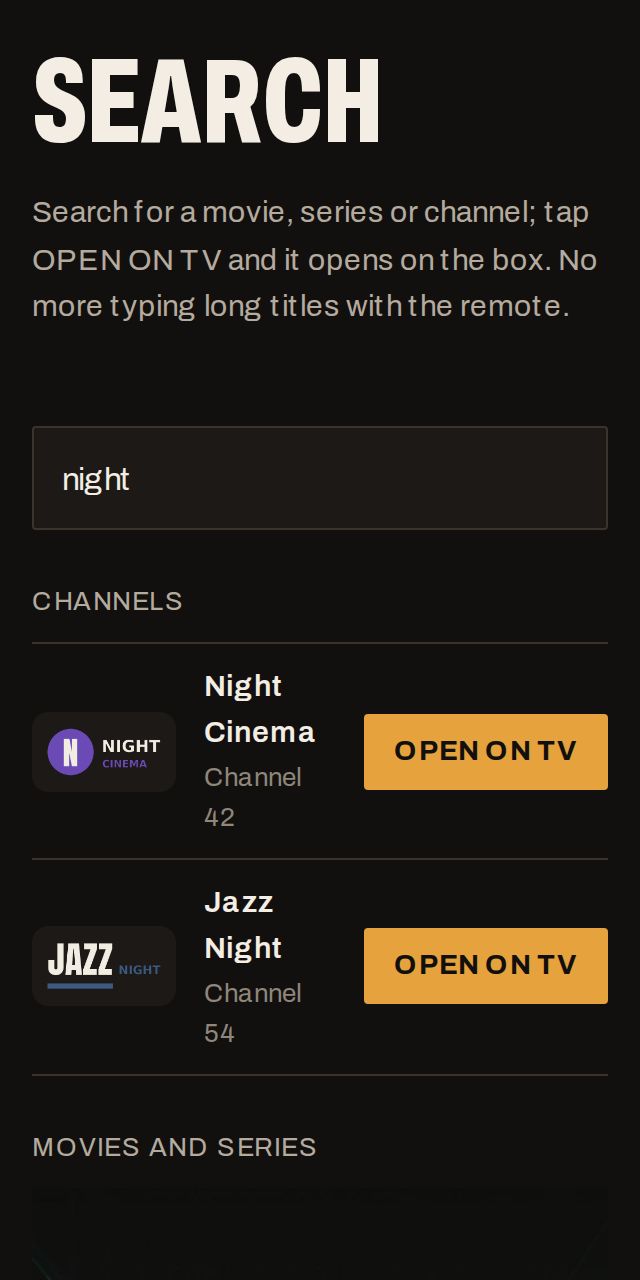
Full-screen keyboard or the 2–9 keys like on a phone; channels are in the results too. Accents don't matter. If you'd rather not type a long name with the remote, search on your phone and tap OPEN ON TV: the title or channel opens on the box.
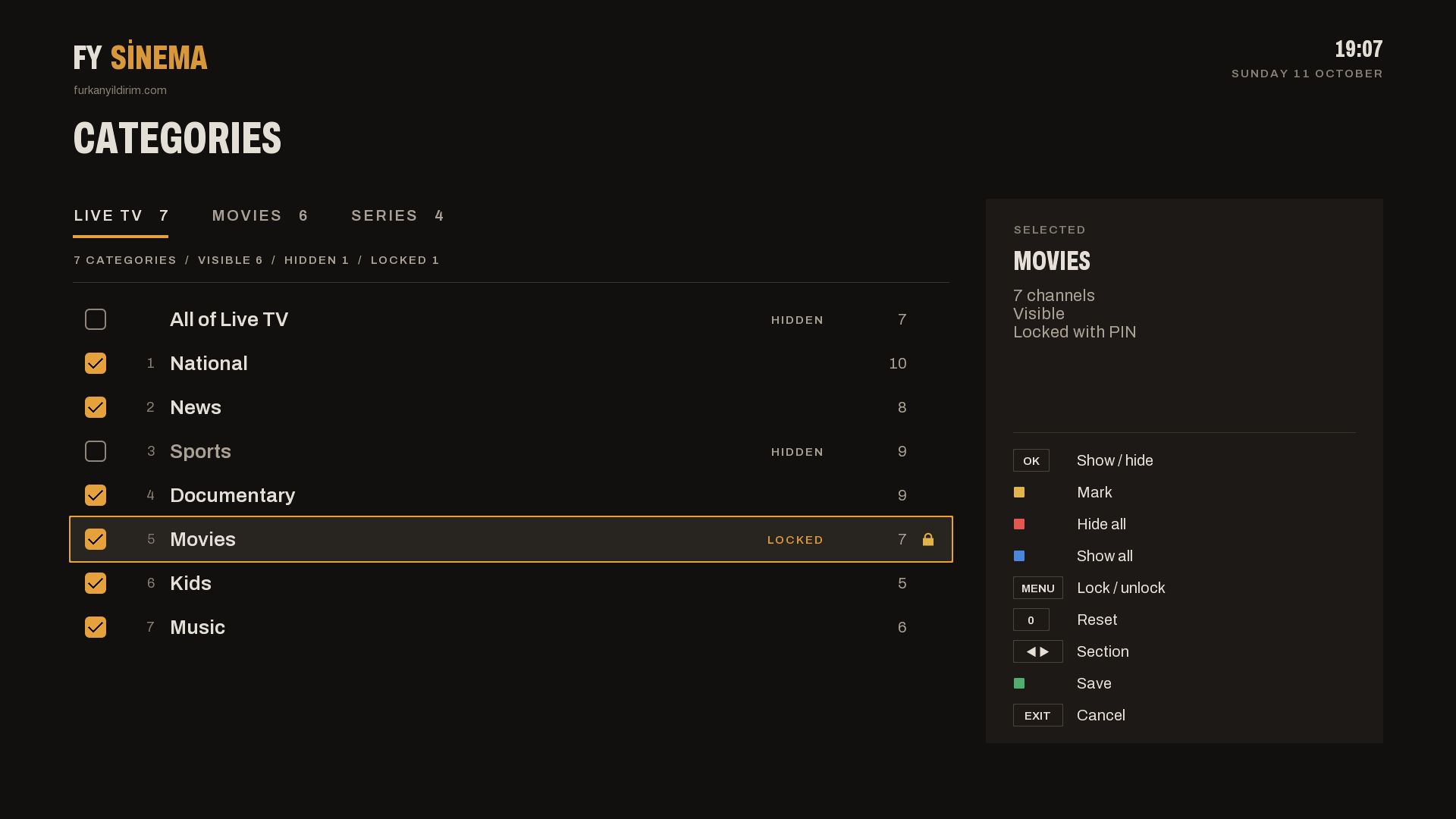
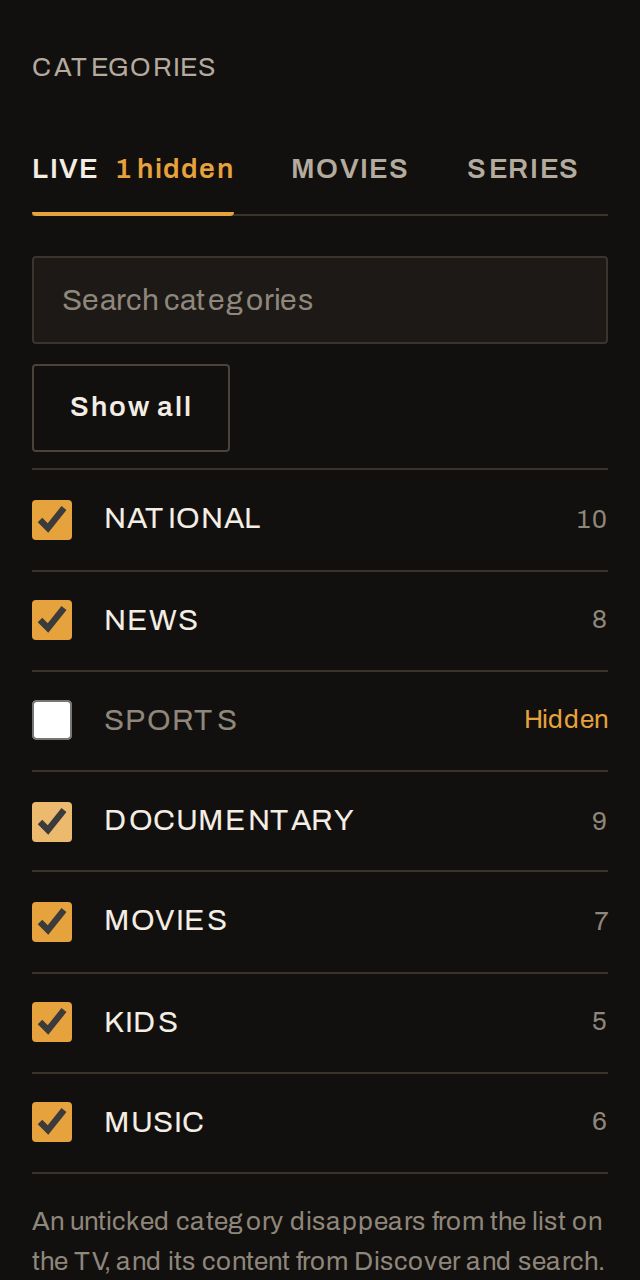
Live TV, movie and series categories on one screen: show them, hide them, mark several and switch them at once, or lock them with a PIN. A hidden category's content doesn't show up on Discover or in search either; a locked one's also stays out of My List, continue watching and history until the PIN is entered. Adult categories lock themselves the first time they appear. From the phone you edit each account separately.
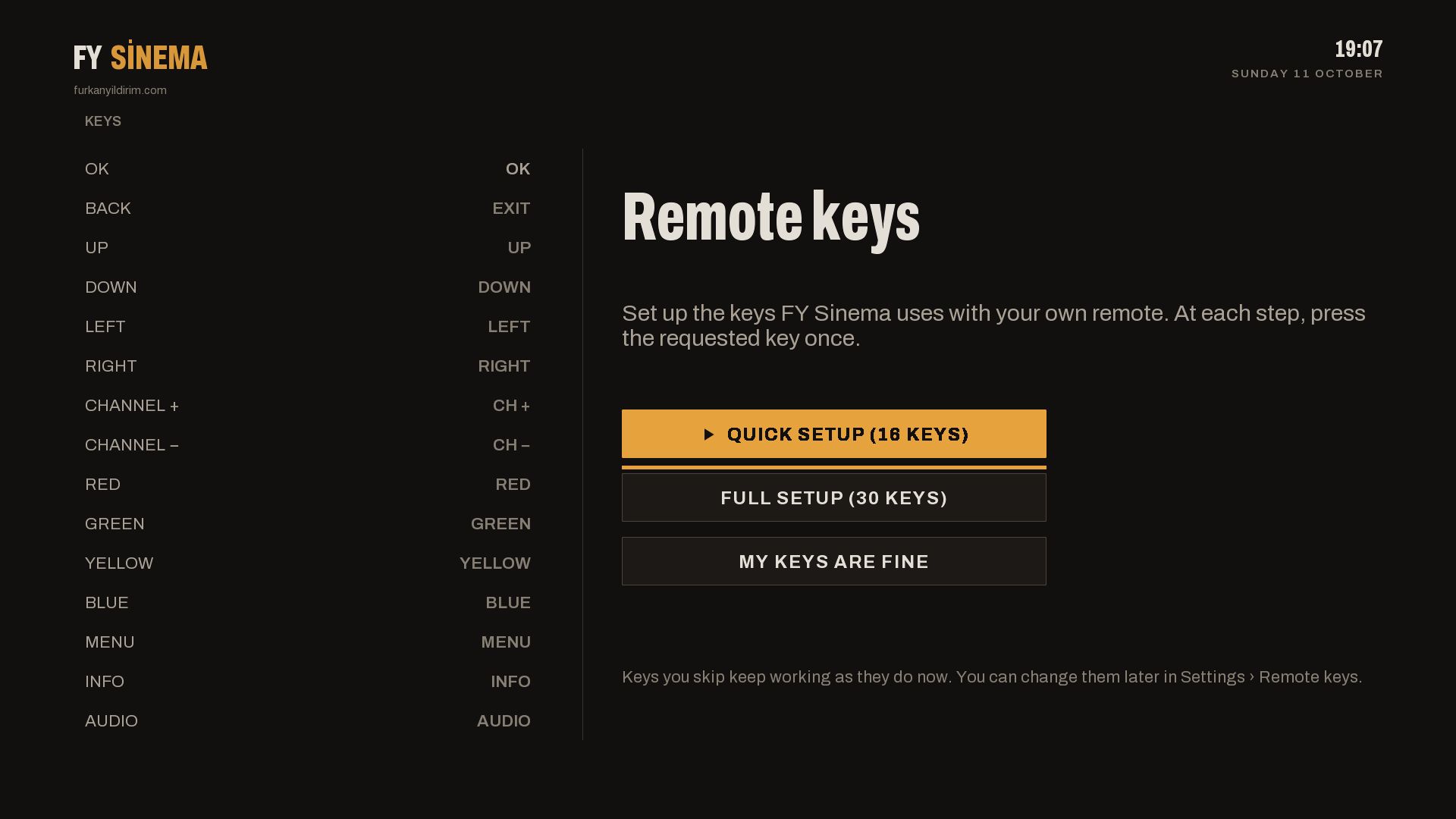
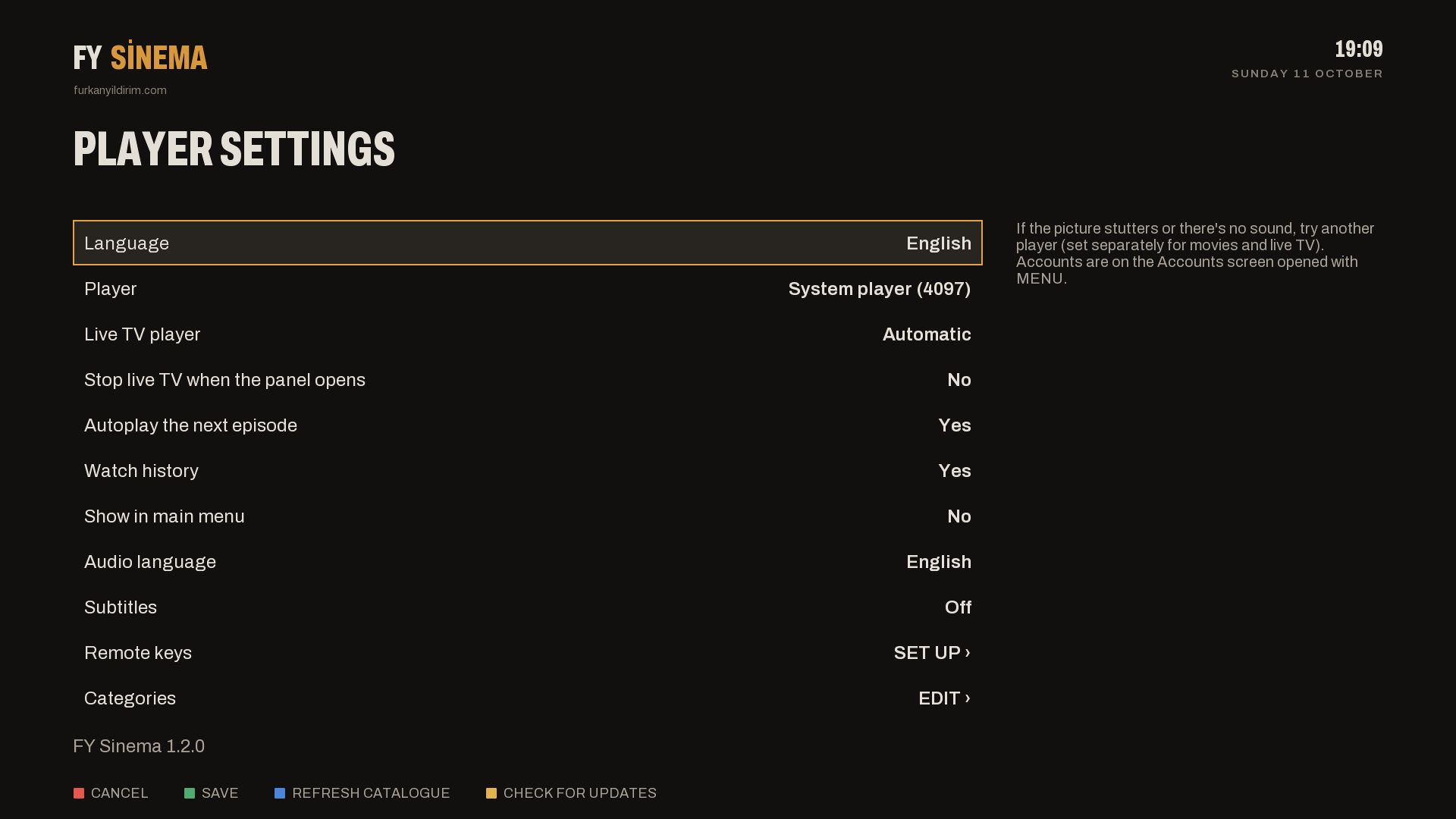
Remotes differ from receiver to receiver. On first start and after every update FY Sinema asks: press the requested keys one after another, quick 16 keys or full 30 keys with the player keys. If your remote already fits, choose MY KEYS ARE FINE and change it later in Settings.
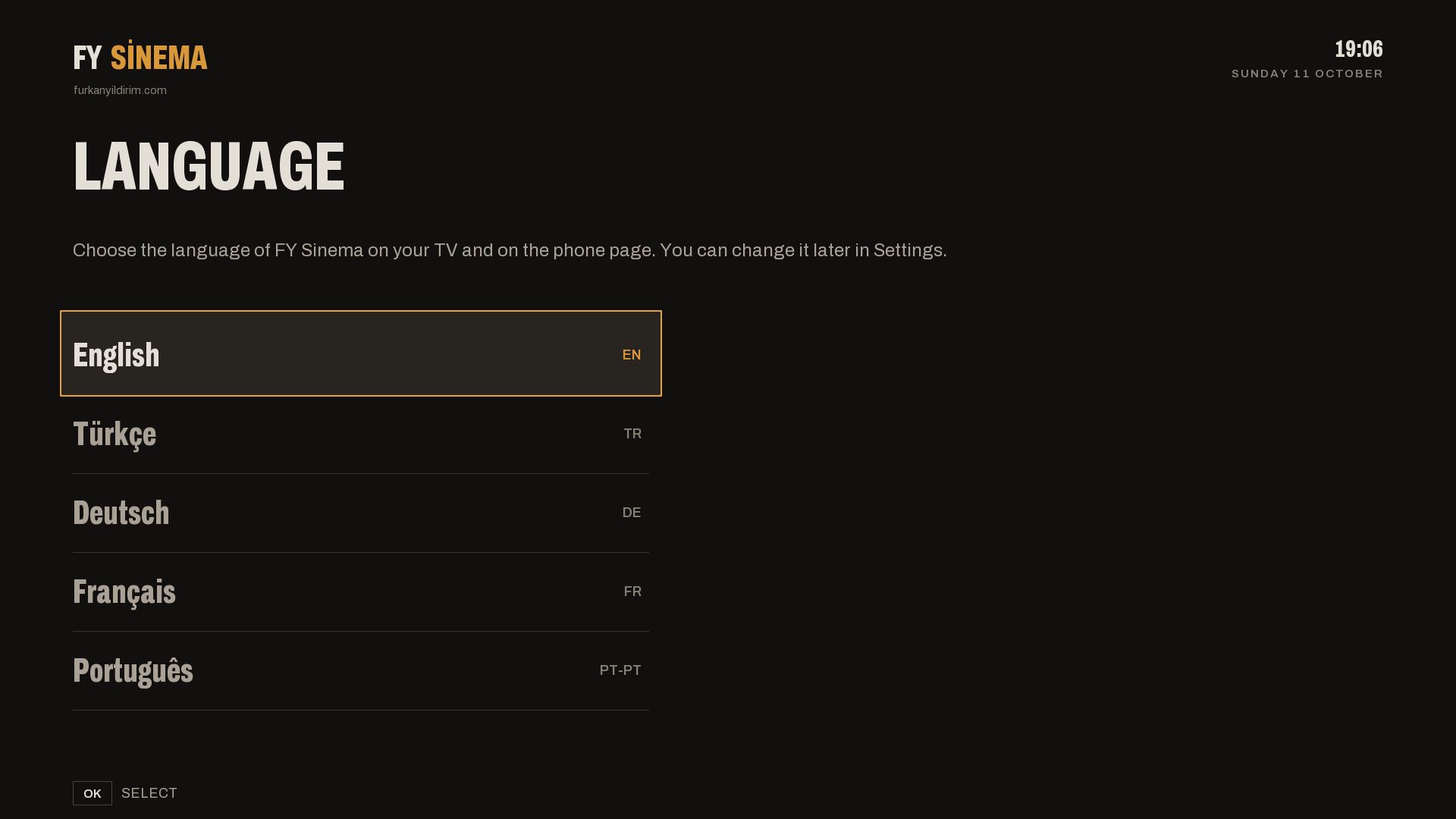
Türkçe, English, Deutsch, Français or Português. Asked on first start; menus, dates and messages come in your language, and the phone page uses it too. Change it later with a single row in the settings.
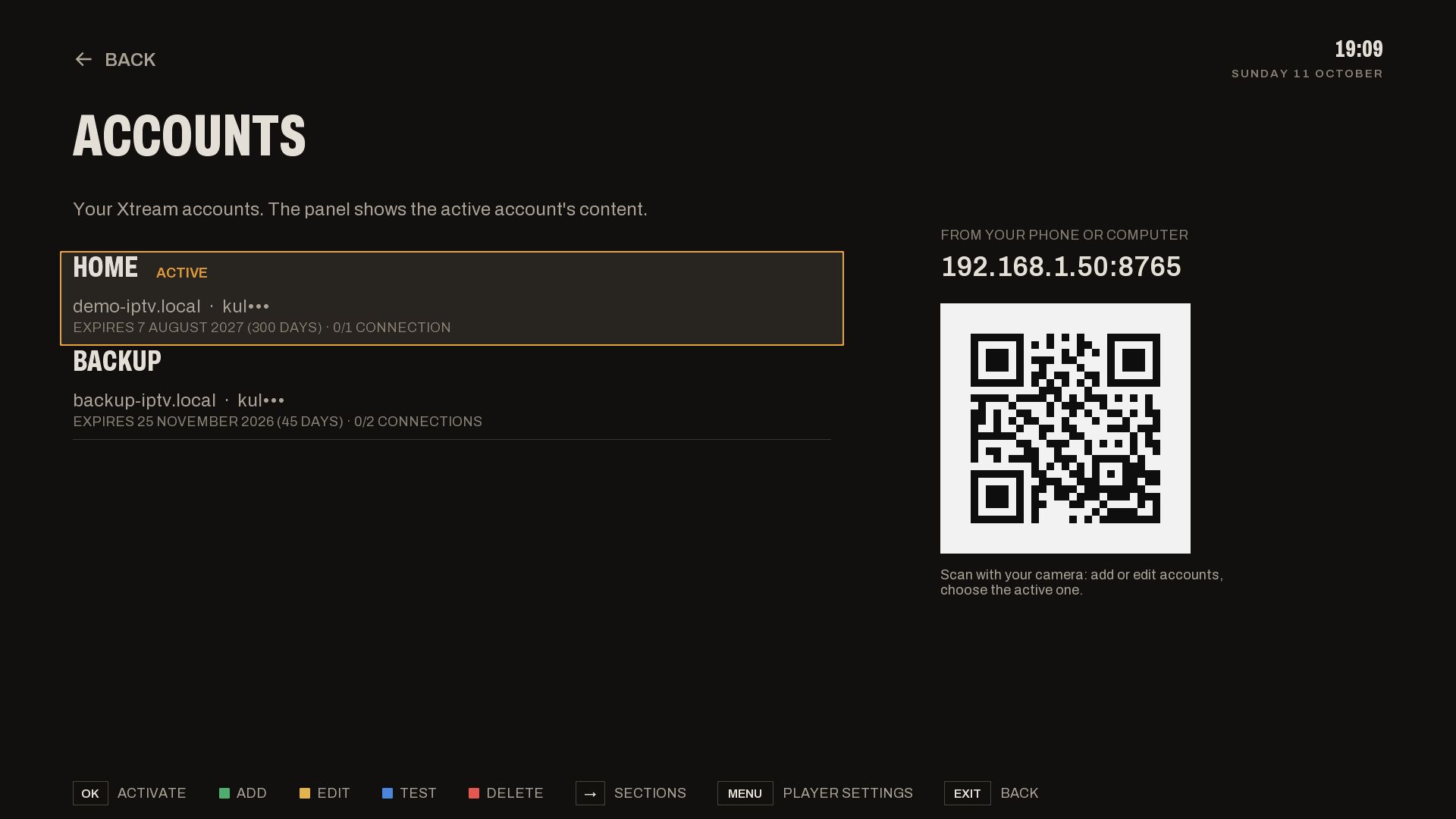
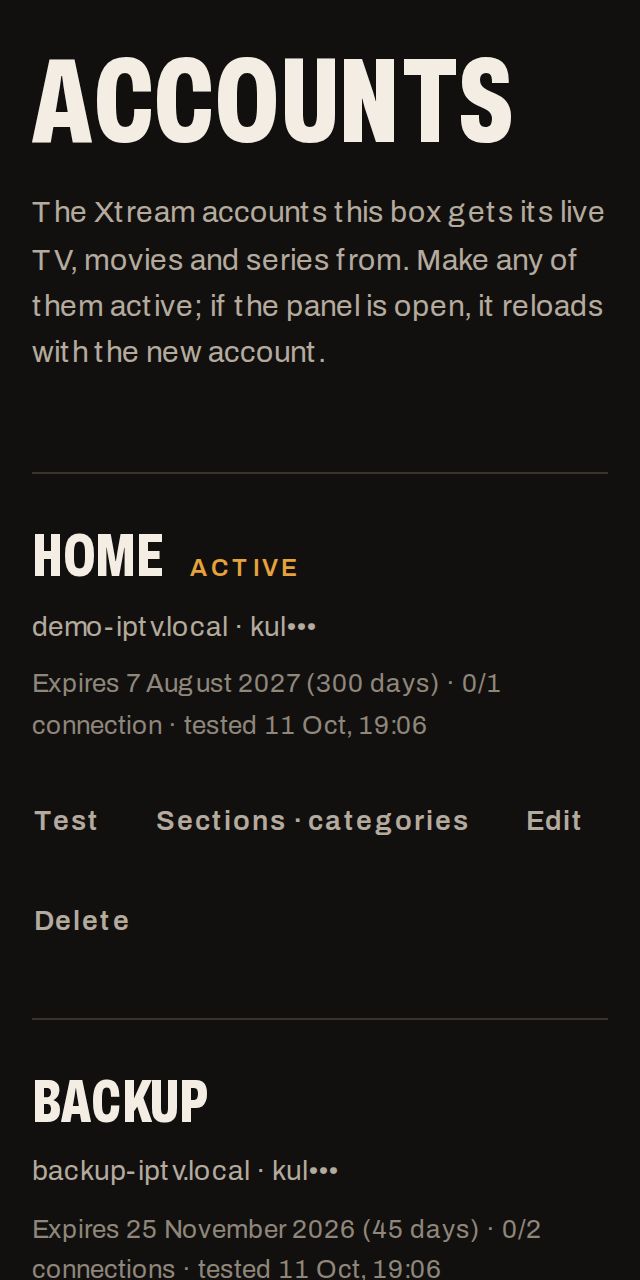
Scan the QR code on screen, paste your provider's link, done. If you have several subscriptions, switch between them with one press; each keeps its own progress, list and history.
Install it on your receiver with a one-line command or with the IPK installer.
Enter the server address, username and password from your provider, or paste your M3U link.
Menu › Plugins › FY Sinema. Pick up where you left off.
root) and run this line:
wget -O /tmp/fysinema.ipk https://sinema.furkanyildirim.com/dl/latest && opkg install /tmp/fysinema.ipkroot) to the receiver's /tmp folder.http://server.com:8080), username and password with the on-screen keyboard and save with GREEN. The login is tested before saving.The panel checks for a new version every time it opens and tells you when there is one. Press UPDATE NOW and the package is downloaded, verified and installed, and the GUI restarts; your accounts, watch progress, list, language and settings are kept. If you choose LATER, it asks again the next time it opens. You can also check by hand with YELLOW in Settings.
First refresh the package list: opkg update. Then run the install line again. The receiver needs access to its image's package feed.
Check the receiver's internet and DNS settings (Menu › Setup › Network). Otherwise download the package on your computer and use the IPK installer.
Restart the GUI. If it still doesn't show, check that it is installed with opkg list-installed | grep fysinema.
Press MENU on the home screen, then MENU once more on the Accounts screen; in the “Language” row at the top choose with ← → and save with GREEN. You can also change it at the top right of the phone page.
In Settings press OK on the Remote keys row: set the keys up again or choose RESET TO DEFAULT. Keys you don't set up keep working with the receiver's own mapping.
Type the details from your provider again; watch for spaces and upper/lower case. If you have an M3U link, paste it instead of typing the details one by one.
The address must look like http://server.com:8080. If you paste a link, paste all of it.
Your provider's server may be down at the moment or the address may be wrong. Check the receiver's internet; a little later, test the login again with BLUE on the Accounts screen.
Your subscription may have expired, been suspended or reached its connection limit. The Accounts screen shows the expiry date and connections; ask your provider.
The address you entered is not an Xtream panel. Ask your provider for the Xtream details (server, username, password).
Check the account details and the internet. Reload the catalogue with BLUE in Settings.
Choose another player in the “Live TV player” row of the settings (Automatic, System player, ExtePlayer3 or GStreamer). If your subscription's connection limit is used up on another device, the stream won't open; press OK to try again.
The provider gives no programme guide (EPG) for that channel; you can still watch it.
That section is off for this account. On the Accounts screen (MENU) press → on the account to open Sections and turn it on, or tick it on the phone under Accounts › Sections · categories.
In the category list open the Categories screen with YELLOW, press OK on the category and save with GREEN. Or show hidden categories with GREEN and hold OK on the category. From the phone: Accounts › Sections · categories › Show all.
In the “Category lock PIN” row of the settings the old PIN is asked, all locks are removed and you choose a new PIN. If the old PIN is unknown too, delete the config.plugins.fysinema.pin line from /etc/enigma2/settings on the receiver and restart the GUI.
If the panel says there are no subtitles, the provider doesn't supply any for that title. ExtePlayer3 may show more subtitles: Settings › Player.
You need a writable USB stick or HDD plugged into the receiver; choose it in the Download disk row of the settings. The disk needs free space for the file plus 1 GB. Most subscriptions allow one connection: downloading pauses while you watch and continues afterwards.
Choose another player in Settings: System player, ExtePlayer3 or GStreamer. If it keeps stuttering, check your internet speed and your provider's stream.
The provider may not supply images for some titles; the panel then shows the title as text.
The phone and the receiver must be on the same home network. Type the address shown on the Accounts screen (e.g. 192.168.1.50:8765) into the phone's browser. To open something on the TV, FY Sinema must be open on the TV.
Press TRY AGAIN on the NEW VERSION screen. Otherwise run the install line again; your accounts and settings are not deleted.
Restart the GUI. If it persists, look at /tmp/fysinema.log; passwords are masked in this file.
Choose FY Sinema in Menu › Setup › Plugins › Remove plugins, or run opkg remove enigma2-plugin-extensions-fysinema, then restart the GUI. Account and settings files stay on the receiver; to delete them too: rm /etc/enigma2/fysinema_*. Downloads stay in the FYSinema-Indirilenler folder on the disk.